A better Herdr configuration for managing multiple agents
September 30, 2026
Herdr is one of the best tools right now for managing multiple coding agents, but it has some terrible defaults. This is an opinionated guide to how I set up and use Herdr more efficiently and comfortably.
If you're just getting started
Make it easy to use
Too busy to read their docs? No problem. You can either:
-
Pass this agent-guide.md to your coding agent, and it will teach you how to set up, use, and troubleshoot Herdr. Or ask it to set up Herdr for you.
-
Install the
/herdragent skill so your agents can drive Herdr themselves: split panes, run commands, and check on neighboring agents.
View all your agents by default
Herdr's main features revolve around helping you command your team of agents. This is easier when you can see them all at once. How I do it:
- Use a single Herdr server, the default one that starts when you run
herdrin the terminal. - Keep the sidebar expanded by default. (Bonus: it pushes your panes toward the center of the screen, which is much more comfortable for your neck. On a wide monitor, this saves you from constantly turning your head to the left.)
Install agent integrations
I feel like this should have been a required step when installing Herdr. Having the Herdr agent integrations unlocks Herdr's real power:
- It automatically reopens and resumes active agent conversations across reboots, instead of dropping you into an empty shell.
- For some agents (like Pi and OMP), it reports their states (
working,blocked, oridle) directly, instead of Herdr guessing from the screen.
Follow their Integrations guide to set yours up.
Better keyboard shortcuts
A Herdr keyboard shortcut typically involves two motions. For example, to create a new Herdr tab, you'd press the prefix of ctrl+b in one stroke, then press c:
This ctrl+b+<key> pattern was inspired directly by tmux, the OG terminal multiplexer. But this is a bad default. Among tmux users (myself included), ctrl+b was widely considered awkward to press, and it was very common to change this prefix to ctrl+a.
I think we should go one step further: use no prefix at all. Most of us are used to keyboard shortcuts that involve a single motion, like cmd+t (I'm on macOS) to create a new tab in Google Chrome. And we can do that here!
Isn't that so much better?
To bind cmd+t to creating a new Herdr tab:
# ~/.config/herdr/config.toml

[keys]
new_tab = "cmd+t" # previously prefix+c
For any custom keys you set, make sure to disable the conflicting keys set by your terminal emulator. I use Ghostty, so I disabled its built-in cmd+t:
# ~/.config/ghostty/config

keybind = cmd+t=unbind
Here are my full custom Herdr keys as of this writing. Take what you like, and don't forget to unbind conflicting keys. Notice how I don't completely replace the prefix shortcuts, as they're great for less common actions and avoiding conflicts with other apps. I also set my prefix to ctrl+space, which is even easier to press than ctrl+a.
# ~/.config/herdr/config.toml

[keys]

# General
prefix = "ctrl+space"
settings = "cmd+,"
detach = "prefix+d"
reload_config = "prefix+r"
goto = "cmd+g"
workspace_picker = ["prefix+w", "alt+w"]
split_vertical = ["prefix+|", "cmd+d"]
split_horizontal = ["prefix+-", "cmd+shift+d"]
zoom = ["prefix+z", "alt+z"]
resize_mode = "prefix+,"
toggle_sidebar = "cmd+shift+b"
copy_mode = "alt+enter"

# Navigation
focus_agent = "cmd+alt+1..9"
switch_tab = "cmd+1..9"
switch_workspace = "alt+1..9"
last_pane = "alt+tab"
previous_workspace = "cmd+alt+left"
next_workspace = "cmd+alt+right"

# Workspace and tab management
rename_workspace = "alt+r"
new_tab = "cmd+t"
rename_tab = "cmd+r"
close_pane = "cmd+w"
Better tab names
By default, Herdr asks you to name each new tab, which gets old fast. Turn the prompt off with prompt_new_tab_name = false, and you get plain numbers instead. It's difficult to know what's going on in a tab, especially when you have multiple tabs/agents running across different workspaces:
1 2 3 +
You can install a Herdr plugin like herdr-automatic-rename (disclosure: I'm its creator) to automatically name them either after their foreground process:
[1] zsh [2] nvim [3] ssh +
Or, even more useful, after the agent session context:
[1] Debug transient issue [2] Improve test suite +
This makes it much easier to quickly know what each agent is working on and prioritize the more important ones.
Make it yours by extending it
Community plugins
Herdr is highly configurable and extensible. Any aspects you don't like can likely be reconfigured or changed.
Check out their community plugins if you haven't already. There are more than 1,400 of them as I'm writing this:
- Want a code review and file viewer sidebar? Check.
- Want a kanban board in your Herdr? Check.
- Want a more integrated nvim experience? Check.
Your own plugins
It's easy to build your own plugins to solve any friction you have in Herdr.
The plugins you make can just be private. Most of mine are. (Although if you make one and think others will find it helpful, I encourage you to open source it!)
Prototyping personal software is an area where AI shines, so you can also point your agent to the docs' plugins page and let it work.
A preview of mine, for your inspo:
herdr-prompt-picker
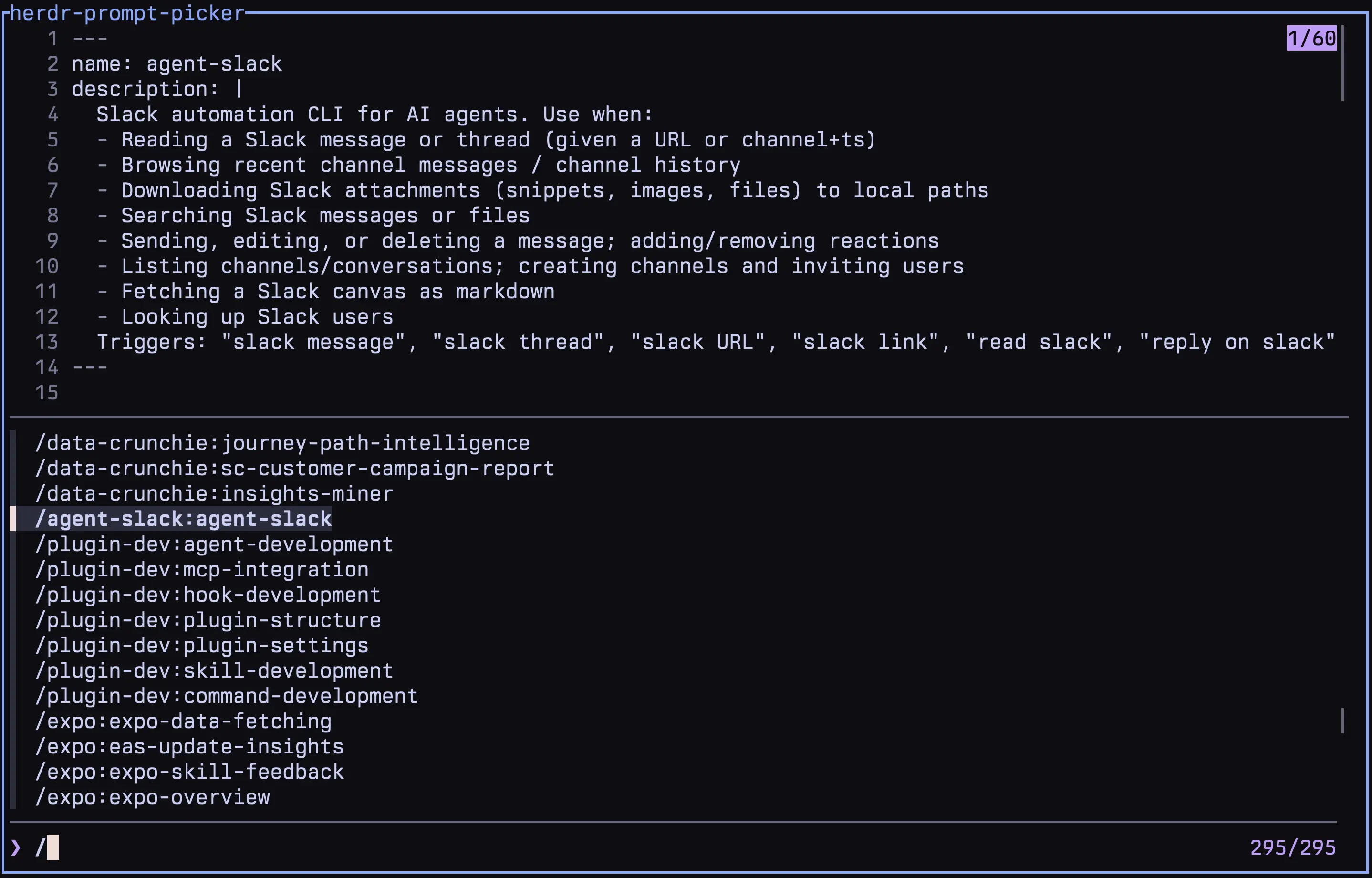
This popup appears whenever I type "@" or "/" in Claude Code. When I type "@", this picker shows a list of files and a preview of their content. When I type "/", this picker shows a list of my available skills and a preview of their SKILL.md.
herdr-screen-picker
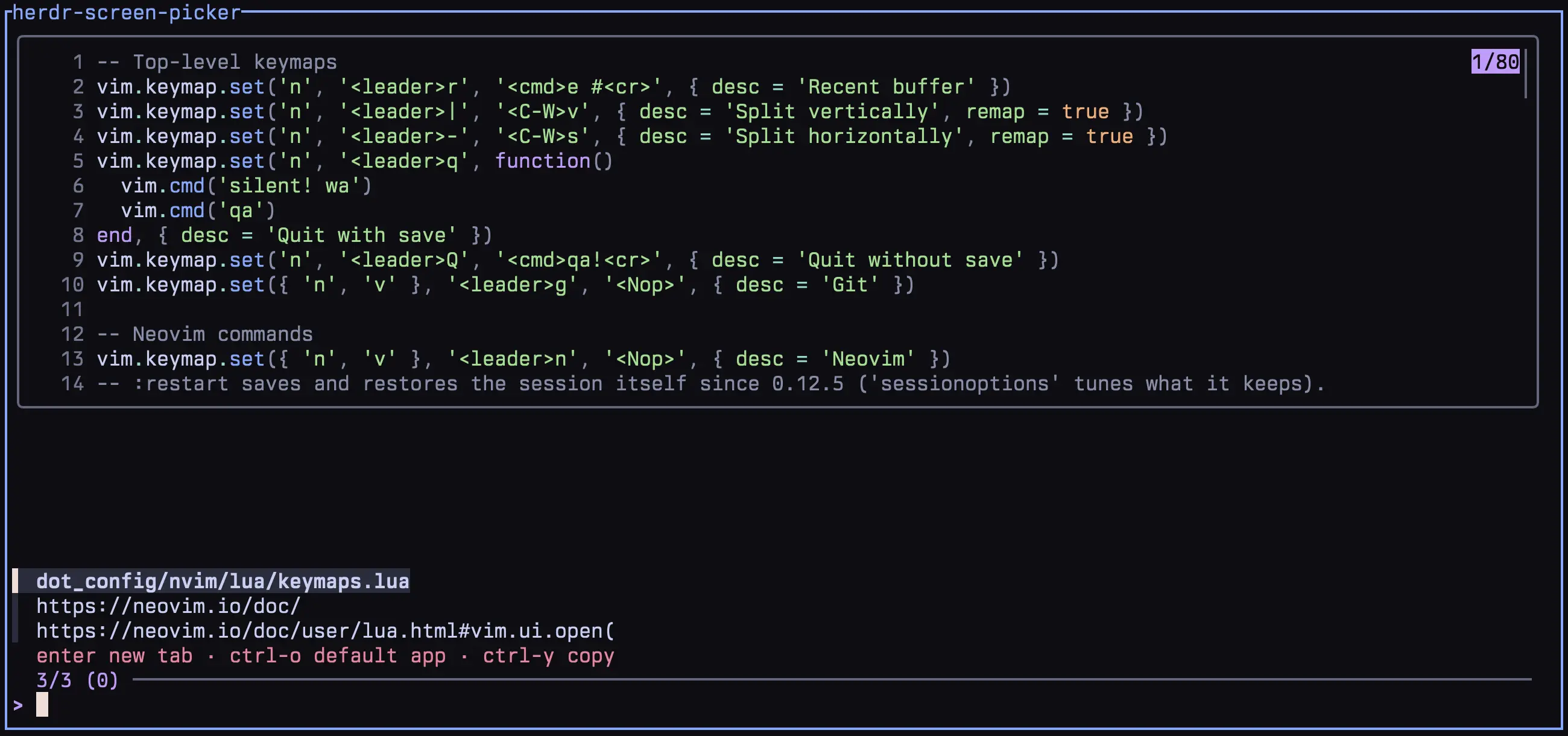
This popup appears via a manual keyboard shortcut. The picker shows a list of file paths or URLs that appear on the screen. Selecting a file opens it with nvim in a new Herdr tab. Selecting a URL opens it in my browser.
herdr-resource-manager
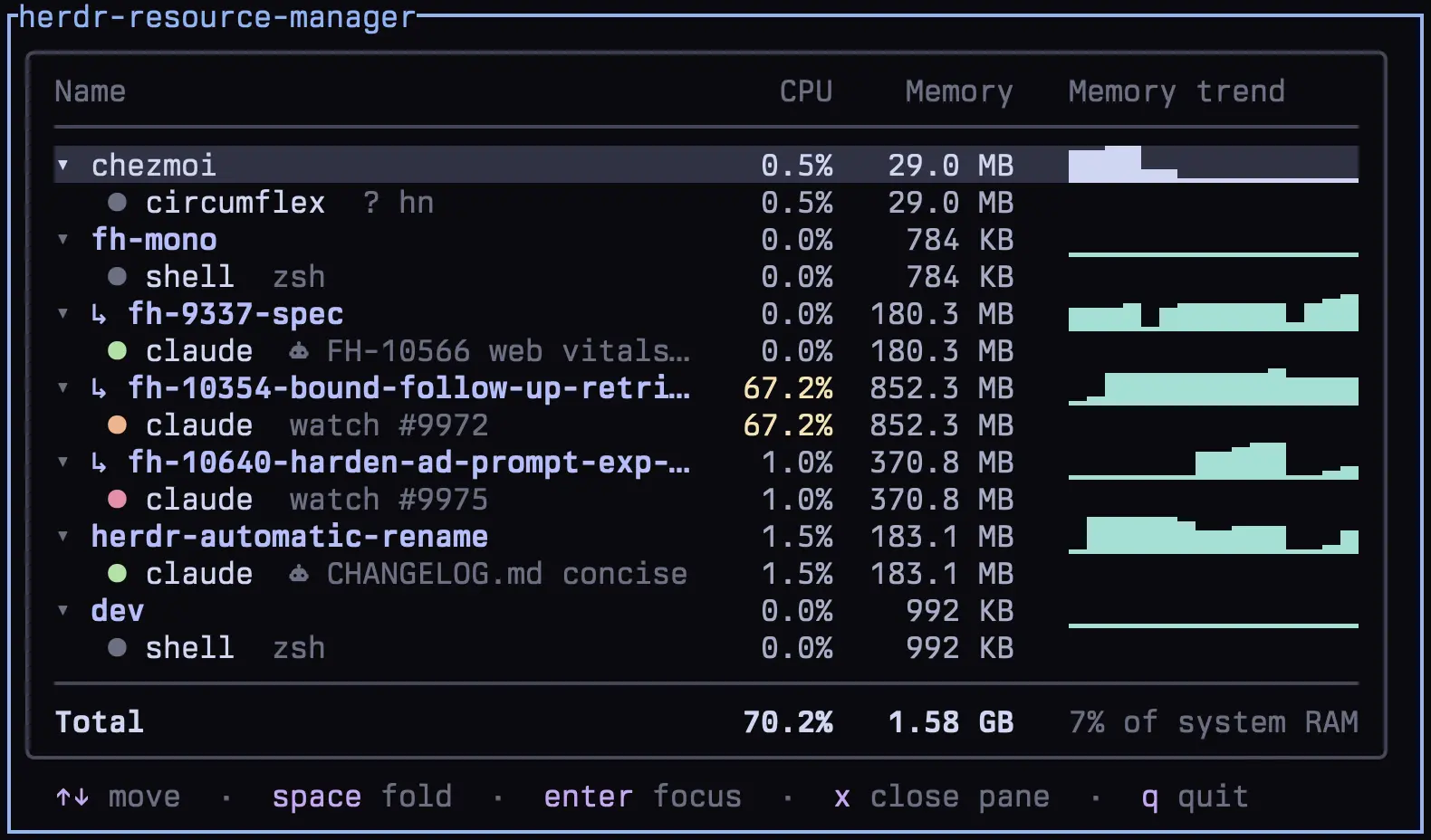
This one was inspired by Orca's Resource Manager feature. This popup shows the CPU and memory consumed by my Herdr workspaces, agents, and tabs. Useful when my laptop's fan gets loud and I want to quickly spot the culprit.
You can see the pattern. I love the Herdr popup's form factor. :)
Share this post to X, Hacker News, or LinkedIn. Drop me a note at .